




Anyone without access to a court issued device can schedule Skype meetings by logging into their Microsoft Office 365 Outlook UCS account at: Office 365 Login.
Connect to your Outlook Account
Connect to Your Outlook Account
-
Login with your email address and password used to sign in to your work computer.
-
Confirm your authentication method (usually either a phone call or code that is sent by text message).
-
Double-Click on the Outlook Icon.
Schedule your Skype Meeting
-
Click on your Calendar on the bottom left.
-
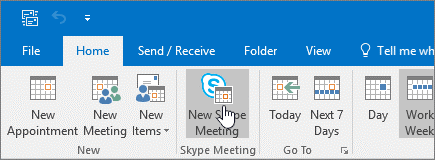
Click on New Skype Meeting.
-
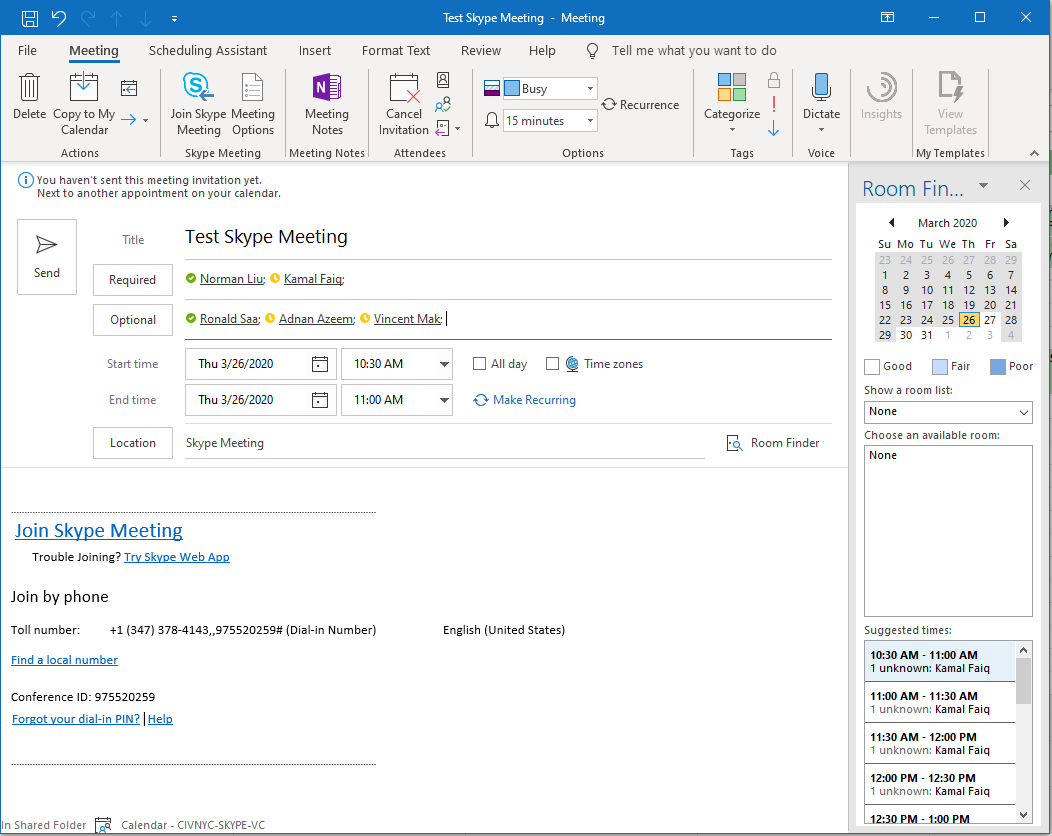
Enter the name of the meeting in the Title.
-
Enter the email address(s) of the attendees (not including yourself) in the Required and/or Optional fields.
-
Enter the Start and End Date and Time.
-
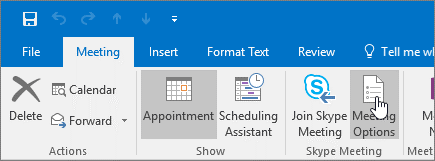
When scheduling the meeting, it is suggest that public attendees be placed in the lobby upon attempting to join the meeting. Manage attendees by clicking on Meeting Options. For more information please see the related article on managing meetings.
Join the Skype for Business Meeting
-
Double- Click on the Event on your Calendar.
-
Click on the Join Skype Meeting link located in the body of the meeting event.

- Follow the prompt to install a web app plugin. This will enable full audio and video capabilities, if you have a webcam and microphone/speakers on your device. For more information, please see the related article on joining meetings.