




You can download and install Office 365 on a home computer or device like a tablet or phone. Office 365 is available for desktops, tablets, and phones.
Install Office 365 on a computer
Install Office 365 on a device
Get more help with installing Office 365
Install Office 365 on a computer
Installing Office 365 on your computer gives you the full functionality of Office 365 apps like Outlook, Word, and Excel.
- Open a browser like Chrome, Safari, or Firefox.
- Go to http://www.office.com and click on "Sign In"

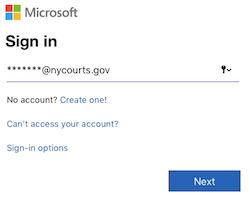
- Enter your court email address then click "Next." After the first time, the browser should remember this information.
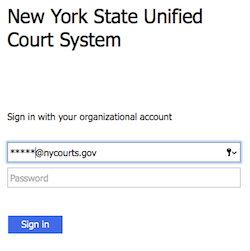
- Enter your password and click "Sign In."
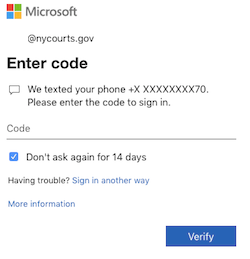
- Your identity will be verified through a text message or a phone call.
- If you get a telephone call, follow the directions.
- If a verification code is texted to you, enter the code in the space. You can check the box for "Don't ask again for 14 days" to reduce the number of times a verification code is required. Click "Verify."
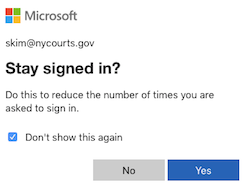
- You have the option to "Stay Signed In" to reduce the number of times you have to log into your account.
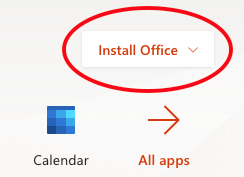
- Click on the Install Office button
- Select "Office 365 apps"
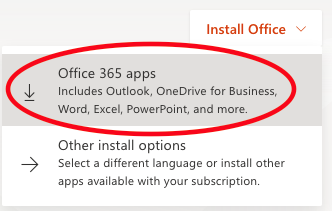
- Follow the onscreen instructions to install Office 365 on your computer.
- To use Office 365:
- Windows: click on "Start" to look for the apps
- Mac: go to Finder > Applications or Launchpad to find the apps
Install Office 365 on a phone or tablet
The Microsoft Office app includes Word, Excel, and Powerpoint. It doesn't include. If you want to check your email, install the Outlook app.
- If you are using an Apple device, go to the App Store. If you are using an Android device, go to the Play Store.
- Search for the app "Office 365". Find "Microsoft Office" from the Microsoft Corporation.
- Open the Microsoft Office App.

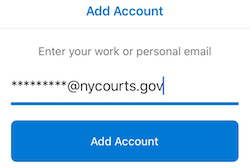
- Follow the onscreen instructions and enter your court email address and continue
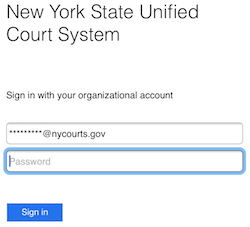
- Enter your password and click "Sign In."
- Your identity will be verified through a text message or a phone call.
- If you get a telephone call, follow the directions.
- If a verification code is texted to you, enter the code in the space. Click "Verify."
- You may have to restart the app to continue.