




Skype for Business Meeting Options
When scheduling online meetings, you can use the Meeting Options dialog box to decide who should wait in the lobby before being admitted to the meeting, who should have presenter privileges during the meeting, and the level of participation allowed for meeting attendees.
If you are scheduling an online meeting with people outside the Unified Court System or if it is expected for the meeting information to be shared with a large number of people, it is recommended that you change the “These people don’t have to wait in the lobby” option from “Anyone (no restrictions)” to “Anyone from my organization” in order for the presenter(s) to be able to moderate who is admitted to the meeting.
Meeting Options
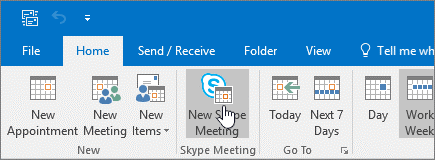
From your Outlook calendar, click New Skype Meeting.
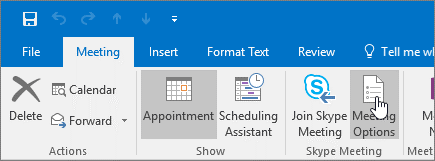
In the Meeting window, click Meeting Options.
These people don't have to wait in the lobby.
The lobby is a virtual place where attendees are placed upon joining the meeting, waiting to be admitted to your meeting. The attendee is unable to communicate to anyone or listen to any of the conversation while in the lobby.
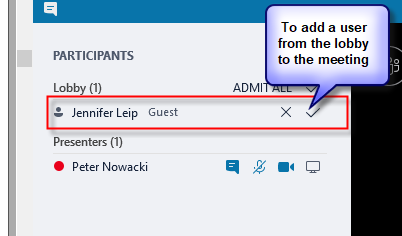
The organizer must admit the attendee by expanding the participant list on the left side of the meeting and click on the check mark.
If a private discussion needs to occur: the organizer must click on the participant list and right click on the participant that should not be included. The organizer would then choose the option to remove the attendee from meeting. This will disconnect the attendee from the call.
To re-join the meeting and be placed back into the meeting lobby, the attendee must click on the original meeting invitation link. The organizer would admit the attendee to the meeting once the private conversation has concluded.
Options in the lobby are described as follows:
| Who gets in directly? | What happens? | Recommended when… |
| Only me, the meeting organizer | You are the only one who gets into the meeting directly. Everyone else has to wait until admitted. | You have a high security meeting and confidential information. |
| People I invite from my company | Only people who were invited can join the meeting directly. Everyone else has to wait until admitted. | You’re discussing confidential information, and want to only allow specific people to join. |
| Anyone from my organization | Anyone from your company can get into the meeting directly, even if not invited. | You don’t have external participants and you are not discussing confidential information. |
| Anyone (no restrictions) (Default option) |
Anyone who has access to the meeting link gets into the meeting directly. | You’re inviting outside participants and you’re not discussing confidential information. |
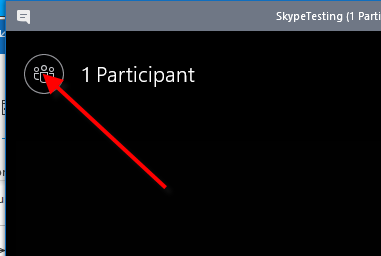
To manage participants during the meeting, click on the Participant icon on the top left corner.
You will see people in the meeting and in the lobby.
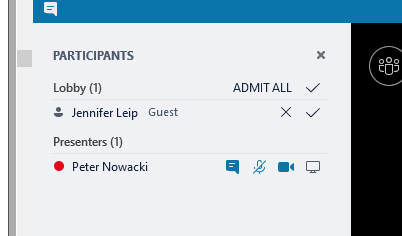
Click on the check to add people in the lobby to the meeting.
The participant will now be in the meeting.
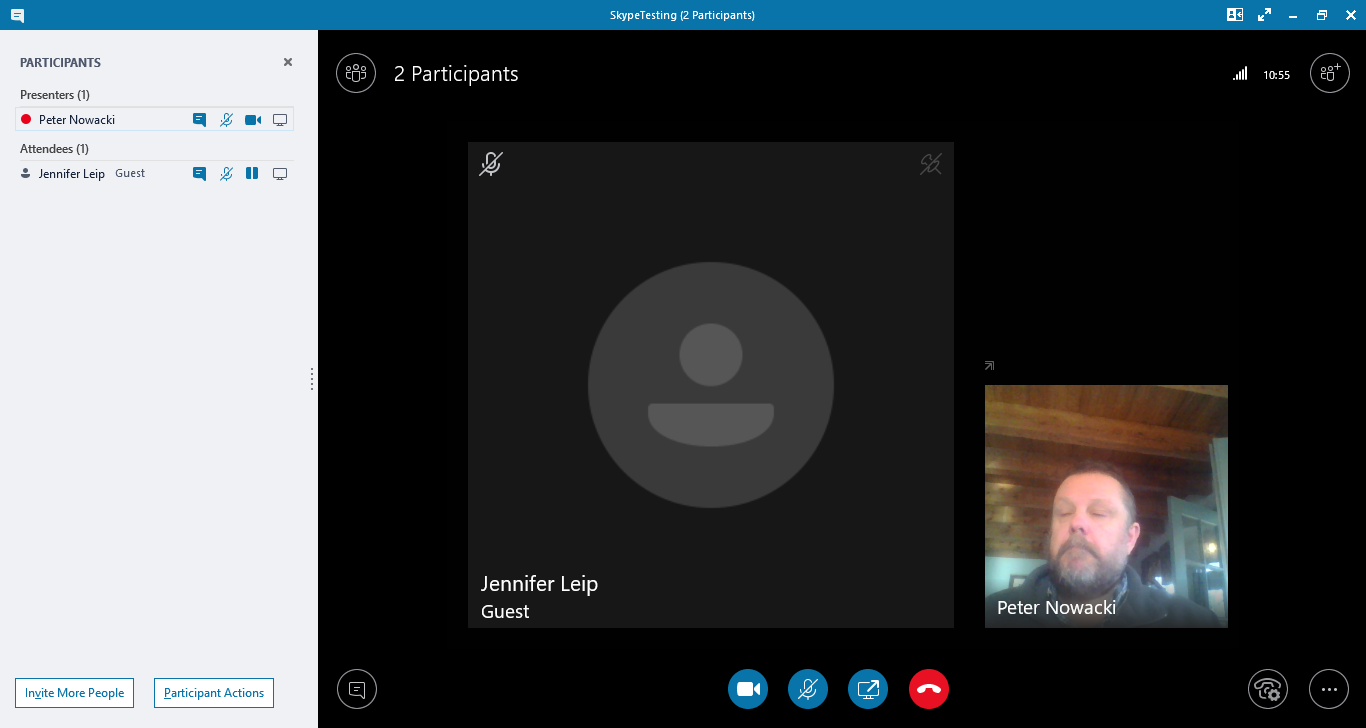
Note: Tell the participants to turn on their audio and video to confirm the connection. Participants should then mute their microphone when they are not talking.
Te remove participants from the meeting, right-click on the user name and choose Remove from Meeting.
Who's a presenter?
The presenter controls which attendees are automatically given presenter privileges when scheduling the meeting. Presenters can also let attendees who are waiting in the lobby into the meeting.
Options for the presenter are described as follows:
| Presenter option | Who is a presenter? | When to choose this option |
| Only me, the meeting organizer | Only the person who schedules the meetings | For presentations where the participants don’t have to interact with the meeting content. (You can designate additional presenters during the meeting.) |
| People I choose | You and the participants you choose | For presentations with more than one presenter. |
| Anyone from my organization (Default option) |
Everyone you invite who has an account on your network | For group work sessions, where all participants work at your organization and can share and modify meeting content. |
| Anyone (no restrictions) | Everyone you invite | For group work sessions with people who don’t have an account on your network. |
Do you want to limit participation?
Participation includes sending and receiving instant messages, talking, or watching video. Participation options affect attendees only; and not the organizer. Participation settings apply to all attendees. If you want specific attendees to participate in the meeting, make them presenters.
Participation limitation allows you to:
.
| Disable IM | When you don't want any attendees to send or receive instant messages during the meeting. |
| Mute all attendees | When presenters want to present without taking questions from the audience. |
| Block attendees' video | When you don't want attendees to see the video that's being presented. |
.