




You can scan documents on your iPhone, iPad, or iPod touch using the Notes app. The Notes app will generate a PDF of the hard copy document. This method can be used when a hard copy of a document has been signed and dated by hand and a PDF file is needed to upload or email.
- If required, sign and date the hard copy of the document
- On the iPhone, open the Notes app

- Tap the icon
 on the bottom right of the screen to create a new note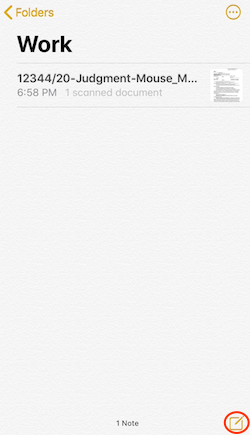
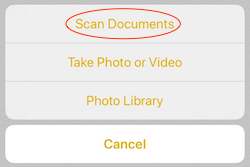
- Tap the camera icon

- Tap "Scan Documents"
- Place the first page of the document in view of the camera on your device.
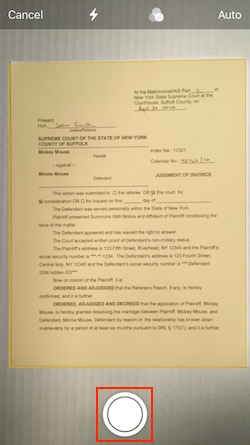
- If your device is in Auto mode, your document will be automatically scanned
- If you need to manually capture a scan, tap the button like you are taking a photo
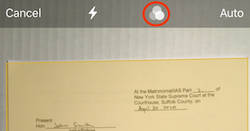
- You may want to change the color settings to "Black and White" for documents. Tap on the color icon at the top of the screen to change the settings
- If necessary, drag the corners to adjust the scan to fit the page, then tap Keep Scan
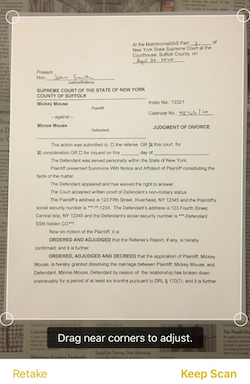
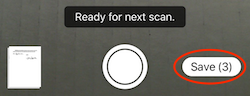
- If there are other pages in the document, continue taking pictures until you are done
- When you have scanned all the pages in the document, tap the "Save" button
- You can name the document yourself or the Notes app will automatically generate a name for the document
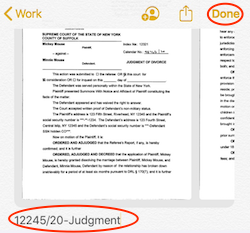
- You can name the document yourself or the Notes app will automatically generate a name for the document
- To email the document, tap on the Share icon
 in the top right of the screen, then tap on Mail or Outlook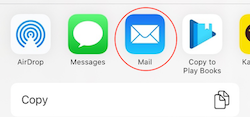
Learn more about using the Notes app from Apple Support