

You can scan a document and save it as a PDF document when using a device like a phone or tablet.
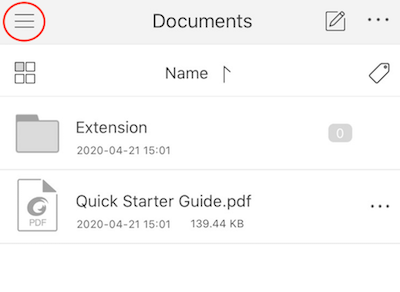
- Click on the menu in the upper left corner
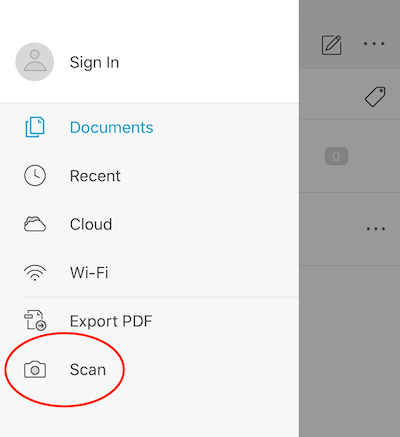
- Select "Scan" from the menu
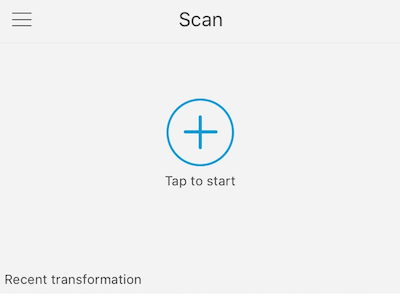
- Touch "Tap to Start" (You may be ask to allow the app to use the camera on the device.)
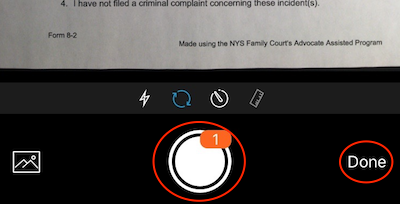
- Click on the circle on the bottom of your screen to take a photo of your document page. To take photos of additional pages, continue to press this button. Click on “Done” when finished taking pictures of all pages.
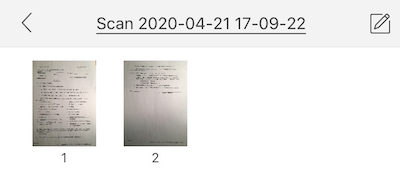
- Click on any of your pages.
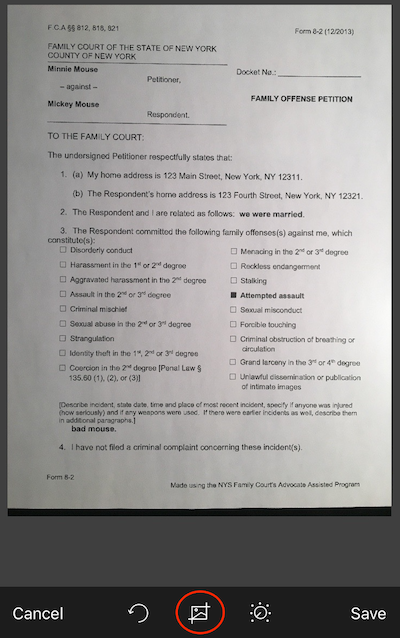
- To remove any background from the page, click on the crop button
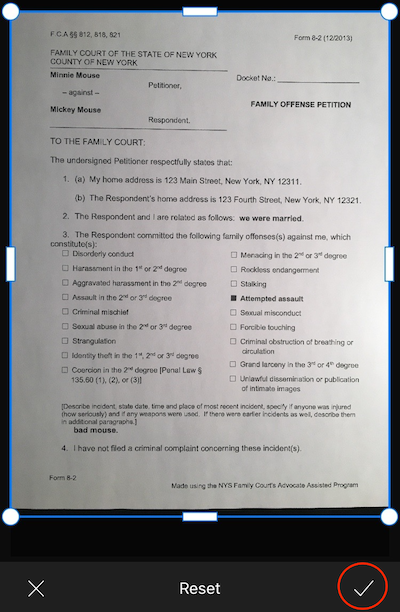
- Adjust the boundaries of your document and touch the “check” on the bottom right.
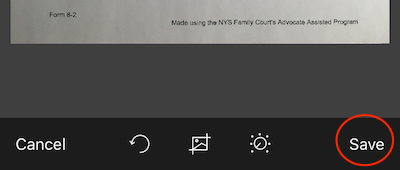
- When you are done the page, click on "Save"
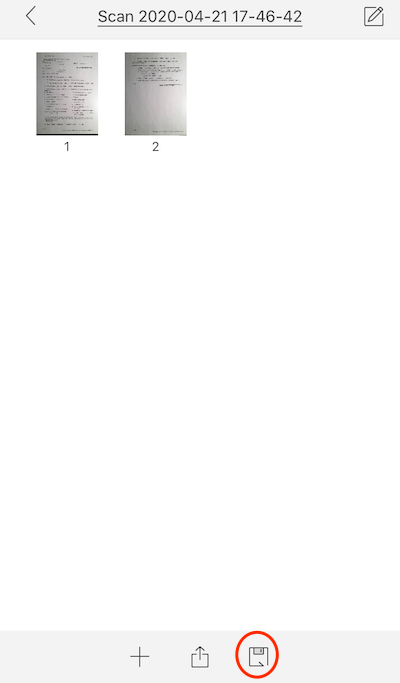
- Review the other pages and adjust the boundaries if necessary
- To save the document, click on the "Save As" button
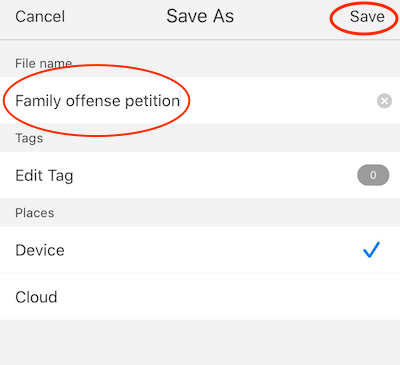
- Rename the document then click "Save"
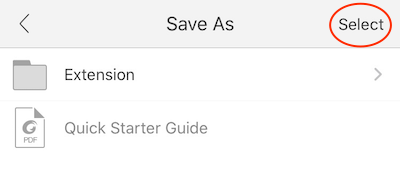
- Touch "Select" to save the document in the default location
Find the PDF on your device
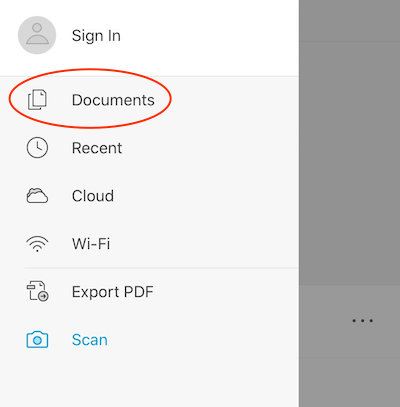
- To find the document you scanned, click on the menu in the upper left corner
- Select "Document" from the menu to view your PDF document