

You can attend a Skype for Business meeting on a computer, laptop, smartphone or other mobile device.
- You must have internet access.
- You must have audio and video capabilities, such as a headphone and webcam or built in camera.
Joining the Meeting
There are three ways to join the meeting.
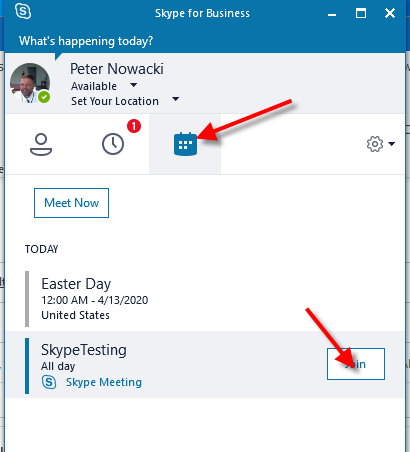
- From the Skype for Business application: Open the notification for the Skype for Business Meeting. Be sure to use the Skype for Business application on the device you are using.
NOTE: If you are working remotely through VPN (Virtual Private Network) into your work computer, the audio and video will not work.
- From the Skype for Business Meeting Invitation email.
- Click the Join Skype Meeting link.

- Click OK at the Join Meeting Audio prompt.
- From the Skype for Business Meeting Invitation email.
- Click the Try Skype Web App link.
- Click Install and Join with Skype Meetings App (web).
- If you do not see the new meeting Window, minimize the Window above.
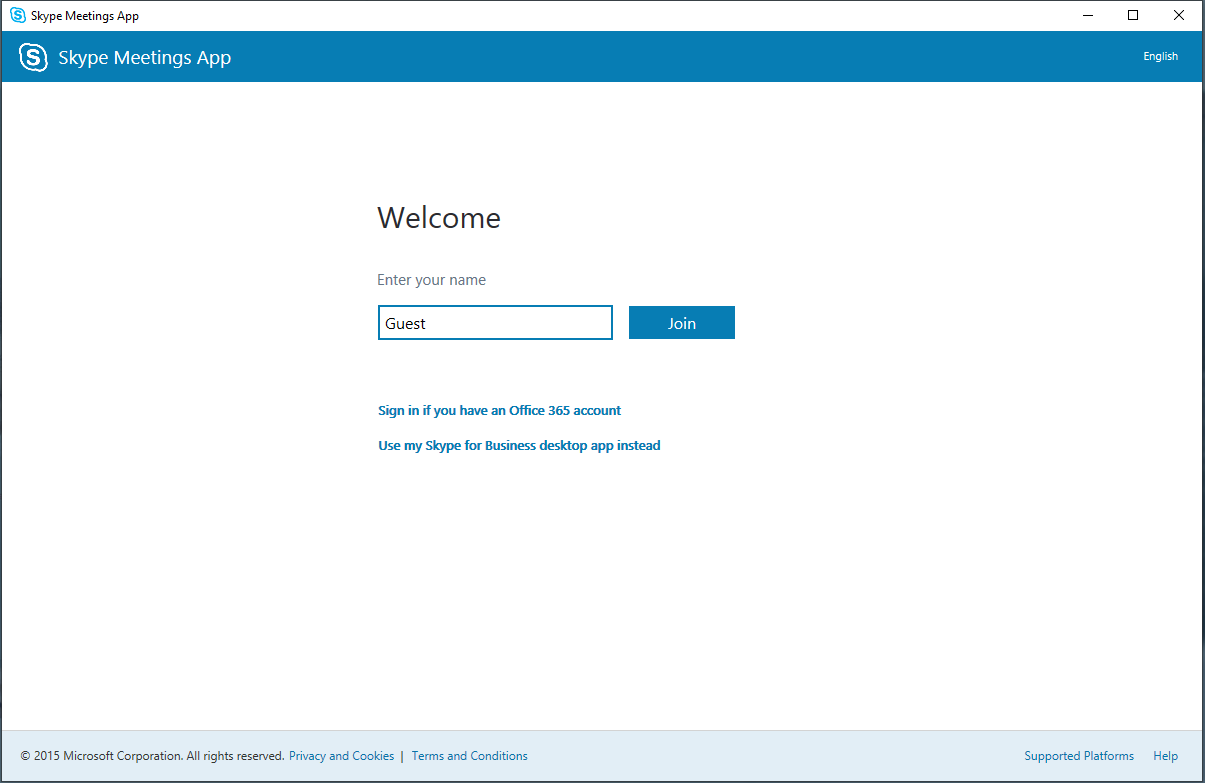
- Enter your name and case role (for example: "John Q. Public, Plaintiff").
- Click Join or
- Click Sign in if you have an Office 365 account.
- If prompted, enter your court system login and password.
- Click the Try Skype Web App link.
- Make sure your mic is un-muted (no slash is over the microphone icon).

- Click on the camera icon and choose Start My Video.

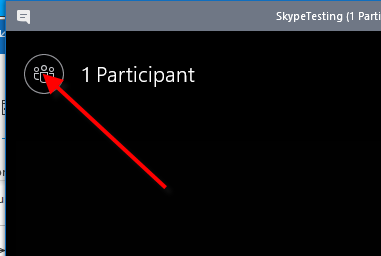
- Click on the Participant icon to see the list of attendees.