




You can show your entire desktop or just a program to everyone in a Skype for Business meeting, call, or instant messaging (IM) conversation. You will need to be a presenter in a Skype for Business meeting to share your screen. There are two options:
-
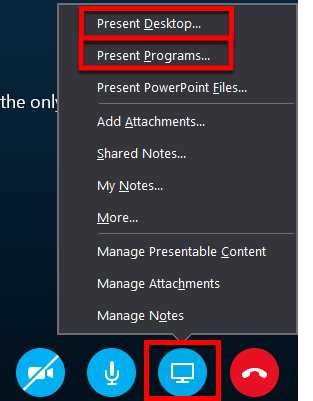
Present Desktop when you need to switch between multiple programs, or work on files from different programs. You are sharing your full desktop with everyone.
-
Present Programs when you need to present specific programs or files and don’t want people to see anything else on your computer. You are sharing only the program with everyone.
Note: Program sharing may not be available for some programs. Use Desktop sharing, instead.
Important: When you Present Desktop, everyone in the Skype meeting can see your programs, files, and notifications. If you have confidential information or files that you don’t want people to see, you should close them. If you do not want to be interrupted with notifications, you should turn them off. Or, use Present Programs instead.
Share Desktop Screen or Program
Share Desktop Screen or Program.
You need to be a presenter in a Skype for Business meeting to share your screen. If the option is grayed out, ask one of the presenters to give you presenter access.
At the bottom of the conversation window, click the Present (monitor image) button.
-
To share the content on your desktop, click Present Desktop.
-
To share one or more programs or files,click Present Programs, and then select the specific program or file.
If you have more than one monitor
- Each one will appear on the Share Screen panel.
- Choose which one you want to share.
- If you use only one monitor, you will not see the Share Screen panel.
On the sharing toolbar, on top of the screen, use either of these options:
-
To share control of your desktop or program with the participants, click the Give Control button in the small toolbar at the top.
-
Click the pin to hide the toolbar and have more space. To see the toolbar, move your mouse to the top of the screen. When the sharing toolbar appears, use any of the controls you need or click the pin again to keep the toolbar visible.
-
Note: While you are presenting, your Skype for Business status changes to Presenting (
 ). This means that you won’t receive instant messages or calls. You can change this setting in the Status options window.
Click the Stop Sharing button when you are done sharing your screen.
Give and Take Control
If you want another meeting participant to change a file, help you present, or demonstrate something, you can grant control to that person. You will both be in control of the sharing, and you can take back control anytime.
To give someone control:- On the sharing toolbar, click Give Control.
- Select the name of the person you want to give control to.
- Skype for Business sends a notification to that person to let them know you’re sharing control.
- Click Give Control.
- Click Take Back Control.
Tip: You can allow people to automatically take control of your sharing session at any time, by clicking Give Control Automatically on the sharing toolbar. To take back automatic permission, click Give Control, and clear the Give Control Automatically check box.
Troubleshooting
Here are some common problems you might encounter with screen sharing. Some can be resolved by installing the latest version of Skype for Business.
- The screen sharing options are disabled — You need to be in a voice or video call to share your screen. If you're not in a call, you won't have the option to share screens.
- I'm in a call, but I'm unable to share my screen — Ensure that you and the person you are sharing your screen with are using a version of Skype for Business that supports screen sharing.
- I'm in a call, but my screen share (or the screen share of another participant) keeps freezing or going blank — Ensure that you have enough bandwidth to share your screen, and close all applications that may be consuming your bandwidth or decreasing performance.
- I can share my screen in a call, but another participant cannot share — If the person that you are sharing your screen with is on an older version of Skype for Business, they may still be able to view your screen, but that person won’t be able to share their screen.
- The screens I'm sharing look distorted or choppy to the other person — Check to see if the person you are sharing your screen with is using an older version of Skype for Business than you are.